How to Fix Orphan Pages That Google Can't Find: Complete Guide 2025
Discover what orphan pages are, why they hurt SEO, and get step-by-step solutions to find and fix them. Expert guide with proven strategies and tools.

You've spent hours creating high-quality content, but it's getting zero traffic. You check Google Search Console and discover dozens maybe hundreds of pages that exist on your site but have no internal links pointing to them. These are orphan pages, and they're silently killing your SEO performance.
I'm Sadekur Rahman, an SEO Specialist with 4+ years of experience optimizing 220+ websites across multiple countries. I've helped countless clients discover and fix orphan pages that were costing them traffic and rankings. The good news? Orphan pages are one of the easier technical SEO issues to fix once you know what you're looking for.
In this comprehensive guide, I'll explain exactly what orphan pages are, why they hurt your SEO, how to find them using various tools, and most importantly how to fix them permanently. Whether you're dealing with a handful or thousands of orphan pages, you'll find actionable strategies you can implement today.
What Are Orphan Pages?
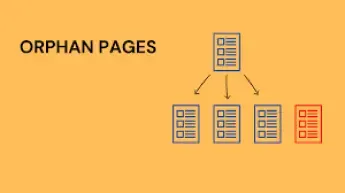
Orphan pages are web pages that exist on your website but have zero internal links pointing to them from other pages on your site. They're essentially isolated disconnected from your site's navigation structure and content hierarchy.
Think of it this way: Your website is like a city, and internal links are the roads connecting different buildings. Orphan pages are buildings with no roads leading to them. They exist, but nobody can reach them by normal navigation.
How Google and Users Find Orphan Pages:
Even though there are no internal links, orphan pages can still be discovered through:
- XML sitemaps: If the page is listed in your sitemap
- External backlinks: Other websites linking to the page
- Direct URL access: Someone typing or pasting the exact URL
- Search results: If Google already indexed the page before it became orphaned
The Problem:
Without internal links, orphan pages are virtually invisible. Google has a harder time:
- Discovering the page during crawls
- Understanding what the page is about (no contextual signals)
- Ranking the page (no link authority passing to it)
According to industry research, orphan pages typically rank far below their potential if they rank at all compared to well-integrated pages with proper internal linking.
For a deeper understanding of how Google finds pages, read my guide on how search engines work.
Why Do Orphan Pages Exist?
Understanding why orphan pages appear helps you prevent them in the future. Here are the most common causes:
1. Website Redesigns and Migrations
When redesigning your site or migrating to a new platform, pages often get disconnected:
- Old URLs aren't properly redirected
- Navigation menus are rebuilt without linking to old content
- Internal links break during the transition
- Footer or sidebar links get removed
2. Poor Internal Linking Strategy
Sometimes pages become orphaned simply due to lack of planning:
- New content published but never linked from existing pages
- Blog posts published without adding them to categories
- Landing pages created for campaigns but isolated from main site
- Forgetting to add new pages to navigation menus
3. E-Commerce Product Removals
E-commerce sites frequently create orphan pages when:
- Products go out of stock and get removed from categories
- Seasonal items are delisted after their season
- Product pages are removed but not deleted or redirected
- Filtered URLs remain after the filter is removed from navigation
4. Content Management Issues
CMS platforms can accidentally create orphans:
- Draft pages that go live but aren't added to menus
- Test pages that remain published
- Old content that loses all its incoming links
- Pages removed from navigation during cleanup
5. Plugin or Theme Changes
WordPress and other CMS users often create orphans when:
- Changing themes that have different navigation structures
- Deactivating plugins that generated internal links
- Updating plugins that alter site structure
- Custom post types losing their archive pages
6. Intentional Isolation
Sometimes orphan pages are created deliberately (but shouldn't be):
- Landing pages for ads kept separate
- Special offer pages for email campaigns
- Hidden pages for testing
- Experimental content not ready for general audiences
For more on website architecture, explore my in-depth guide.
Why Orphan Pages Hurt Your SEO
Orphan pages don't just sit harmlessly on your server they actively damage your SEO performance in multiple ways:
1. Wasted Crawl Budget
Google allocates a limited "crawl budget" to your site the number of pages it will crawl in a given timeframe. Orphan pages waste this budget because:
- Google finds them through sitemaps and tries to crawl
- No internal links mean Google can't efficiently navigate to them
- Time spent on orphans = less time on important pages
- This is especially problematic for large sites
2. Poor Indexation
Without internal links providing context and authority:
- Pages may not get indexed at all
- If indexed, they lack the signals needed to rank well
- Google struggles to understand what the page is about
- Missing contextual signals from surrounding content
3. Lost Link Equity
Internal links pass authority (link equity) throughout your site. Orphan pages:
- Receive no authority from your site structure
- Can't rank competitively for their target keywords
- Waste the potential authority they could pass to other pages
- Break the flow of PageRank through your site
4. Terrible User Experience
If users somehow land on orphan pages (via external links or search):
- They hit navigation dead ends
- No clear path to related content
- Higher bounce rates
- Lower engagement metrics
- Frustrated visitors who leave your site
5. Missed Opportunities
Every orphan page represents:
- Content you've invested time creating that generates zero ROI
- Keywords you could be ranking for but aren't
- Traffic potential going completely unused
- Conversion opportunities lost
According to SEO research, pages with strong internal linking can see ranking improvements of 10-15% simply by being properly connected to your site structure.
How to Find Orphan Pages on Your Website
Finding orphan pages requires comparing your site's actual pages against its link structure. Here are the most effective methods:
Method 1: Using Screaming Frog SEO Spider
Screaming Frog is one of the most reliable tools for finding orphan pages.
Step-by-Step Process:
- Download and Install Screaming Frog SEO Spider
- Configure Crawl Settings:
- Go to Configuration → Spider
- Enable "Crawl Linked XML Sitemaps"
- Start Your Crawl:
- Enter your website URL
- Click "Start" to crawl
- Filter Results:
- Go to Internal → HTML tab
- Sort by "Inlinks" column
- Pages with 0 inlinks are orphans
- Export Your List:
- Select orphan pages
- Export → Export Tabs
- Save as CSV for analysis
Pro Tip: For large sites, the paid version allows unlimited crawls and can handle millions of URLs.
Method 2: Using Google Search Console
Google Search Console shows which pages Google has indexed but may not be well-linked.
Steps:
- Log into Google Search Console
- Go to Coverage Report:
- Click "Coverage" in the left sidebar
- Check "Valid" pages
- Compare to Internal Links:
- Export the list of indexed pages
- Cross-reference with your sitemap
- Check if pages appear in your navigation
- Look for Patterns:
- Pages with impressions but no clicks
- Pages indexed but showing low in results
- Pages Google found but struggles to understand
Limitation: GSC won't explicitly label pages as "orphans," but it shows you which pages Google knows about.
Method 3: Using Ahrefs Site Audit
Ahrefs has a dedicated feature for finding orphan pages.
Steps:
- Set Up Site Audit:
- Go to Site Audit in Ahrefs
- Create new project or use existing
- Run the Crawl:
- Let Ahrefs crawl your entire site
- Check Orphan Pages Report:
- Navigate to "Orphan Pages" in the left menu
- View all pages with no internal links
- Analyze Results:
- Sort by importance (traffic, backlinks)
- Export for fix prioritization
Benefit: Ahrefs shows you additional data like backlinks and historical traffic, helping you prioritize which orphans to fix first.
Method 4: Using SEMrush Site Audit
SEMrush identifies orphan pages during its regular site audits.
Steps:
- Create Site Audit Project
- Configure Settings:
- Enter your domain
- Choose crawl limits
- Run Audit:
- Let SEMrush analyze your site
- View Orphan Pages:
- Go to Issues tab
- Filter for "Orphan pages" warnings
- Get Recommendations:
- SEMrush suggests fixes for each orphan
Method 5: Manual XML Sitemap Comparison
For smaller sites, you can find orphans manually.
Steps:
- Get Your Sitemap URLs:
- Visit yoursite.com/sitemap.xml
- Copy all listed URLs
- Crawl Your Site:
- Use a browser extension like Link Miner
- Or manually navigate through your site
- Compare Lists:
- URLs in sitemap but not reachable via navigation = orphans
- Create spreadsheet to track differences
Best For: Small sites (under 500 pages) or quick spot-checks.
For more on crawling your website, check out my detailed guide.
Step-by-Step Guide to Fix Orphan Pages
Once you've identified orphan pages, it's time to fix them. Follow this systematic approach:
Phase 1: Audit and Prioritize
Don't try to fix everything at once. Prioritize orphans based on:
High Priority (Fix First):
- Pages with external backlinks pointing to them
- Content with historical traffic or rankings
- Important product or service pages
- Recently published content
- Pages targeting valuable keywords
Medium Priority:
- Older blog posts with decent content
- Category or tag pages
- Resource pages
- Support or help content
Low Priority:
- Old, outdated content
- Duplicate or thin content
- Test pages or drafts
- Pages you're considering deleting anyway
Create a Spreadsheet:
- URL of orphan page
- Current status (traffic, backlinks, rankings)
- Priority level
- Planned action (link, redirect, delete)
- Status (pending, in progress, completed)
Phase 2: Decide the Fate of Each Orphan
For every orphan page, choose one of these actions:
Option 1: Add Internal Links (Most Common)
Use this when the page:
- Has valuable, relevant content
- Targets keywords you want to rank for
- Gets traffic or has backlinks
- Fits naturally into your site structure
Option 2: Redirect with 301
Use this when:
- Content is outdated but had value
- Similar content exists elsewhere on your site
- Page has backlinks but content is no longer relevant
- You're consolidating similar pages
Option 3: Delete the Page
Use this when:
- Content is duplicate or low quality
- Page serves no purpose anymore
- No backlinks or historical value
- Test page that should never have been live
Option 4: Improve and Then Link
Use this when:
- Content needs updates before it's worth linking
- Page is thin and needs expansion
- Information is outdated and needs refresh
Phase 3: Add Internal Links to Orphan Pages
This is the most common and effective fix. Here's how to do it right:
1. Find Relevant Linking Opportunities
Identify pages where linking to the orphan makes sense:
- Related Content: Blog posts on similar topics
- Parent Pages: Category pages if orphan is a subcategory
- Navigation: Main menu, footer, or sidebar
- Resource Sections: "Related articles" or "You might like" sections
- Pillar Content: Comprehensive guides that should link to detail pages
2. Use Descriptive Anchor Text
Create contextual, keyword-rich anchor text:
- Bad: "Click here for more information"
- Good: "Learn how to optimize your website's crawl budget"
3. Add Links Naturally
Don't force links where they don't belong:
- Natural: "For more details on technical SEO, check out our guide to fixing crawl errors."
- Forced: "Click here, here, and here for more info."
4. Update Multiple Pages
Don't just add one link to an orphan. Aim for 2-5 internal links from different pages:
- Provides multiple discovery paths
- Passes more link authority
- Gives Google better context
- Creates a stronger signal of importance
5. Update Navigation When Appropriate
For important orphans, consider adding to:
- Main navigation menu
- Category listings
- Footer links
- Sidebar widgets
- Related posts sections
Example Fix:
Let's say you have an orphan page about "local SEO strategies." You could:
- Add it to your SEO services category page
- Link from a blog post about "complete SEO guide"
- Include in your services menu under "SEO Services"
- Add to related posts on other SEO articles
- Reference in your homepage content
Phase 4: Implement 301 Redirects
For orphans you're consolidating or removing, create proper redirects.
When to Use Redirects:
- Page has backlinks but content is outdated
- Merging similar content into one stronger page
- Deleting page but want to preserve link equity
- Site restructuring requires URL changes
How to Create 301 Redirects:
In WordPress (using .htaccess):
Redirect 301 /old-orphan-page/ https://yoursite.com/new-relevant-page/
Using Redirection Plugin (WordPress):
- Install and activate Redirection plugin
- Go to Tools → Redirection
- Add source URL and target URL
- Save redirect
Using Yoast SEO Premium:
- Go to SEO → Redirects
- Enter old URL (source)
- Enter new URL (target)
- Save changes
Best Practices:
- Always redirect to the most relevant page possible
- Don't redirect everything to homepage (Google may ignore)
- Test redirects to ensure they work
- Keep redirect list documented
Phase 5: Delete Unnecessary Pages
For truly worthless orphans, deletion is appropriate.
Before Deleting:
- Check for Backlinks: Use Ahrefs or SEMrush to verify no valuable backlinks exist
- Verify No Traffic: Ensure the page gets zero visitors
- Confirm Indexed: Check if Google has it indexed
How to Delete Safely:
- Return 410 Status (Gone) instead of 404 if permanently removed
- Or Create 301 Redirect to closest relevant page
- Remove from XML Sitemap
- Remove from Internal Links (if any developed)
After Deletion:
- Monitor Search Console for 404 errors
- Request removal from Google's index (optional)
- Update any external links if possible
Phase 6: Update Your XML Sitemap
After fixing orphans, ensure your sitemap is accurate.
Steps:
- Regenerate Sitemap:
- If using Yoast, go to SEO → General → Features → XML Sitemaps
- Click "See the XML sitemap"
- Verify Fixed Orphans Are Now Included Properly
- Remove Deleted Pages from Sitemap
- Resubmit to Google Search Console:
- Go to Sitemaps
- Resubmit your sitemap URL
Learn more about creating proper sitemaps.
Phase 7: Request Re-Indexing
Help Google discover your fixes faster.
For Individual Pages:
- Go to URL Inspection tool in Search Console
- Enter the fixed orphan URL
- Click "Request Indexing"
- Limit: 10 URLs per day
For Bulk Fixes:
- Submit updated sitemap
- Wait for Google to recrawl naturally
- Monitor indexing in Coverage report
Phase 8: Monitor and Verify
Track the success of your orphan page fixes.
What to Monitor:
- Indexation Status: Are fixed pages staying indexed?
- Rankings: Do formerly orphaned pages start ranking?
- Traffic: Are they receiving organic visitors now?
- Crawl Stats: Is Google crawling them more frequently?
Tools to Use:
- Google Search Console (coverage, performance)
- Google Analytics (traffic to previously orphaned URLs)
- Rank tracking software (positions for target keywords)
Preventing Future Orphan Pages
Prevention is easier than fixing. Implement these practices:
1. Internal Linking Workflow
For New Content:
- Add internal links before publishing
- Link to new content from related existing pages
- Add to appropriate categories and tags
- Include in navigation if applicable
Checklist for Every New Page:
- Added to XML sitemap
- Linked from at least 3 other pages
- Included in appropriate category
- Added to navigation (if important)
- Listed in related posts sections
2. Regular Site Audits
Monthly Tasks:
- Run crawl with Screaming Frog or similar
- Check for new orphan pages
- Review recently published content
Quarterly Tasks:
- Complete technical SEO audit
- Review site architecture
- Update internal linking strategy
- Check deleted page redirects
Use my website audit checklist for thorough reviews.
3. Site Migration Planning
Before Redesigns:
- Document all existing URLs
- Plan redirect mapping
- Test in staging environment
- Verify all pages have link paths
After Migration:
- Run immediate orphan check
- Monitor Search Console for errors
- Track traffic to ensure no drops
4. Content Management Standards
Team Guidelines:
- Never publish without internal links
- Update old content with links to new pages
- Review navigation when structure changes
- Maintain consistent taxonomy (categories, tags)
5. Plugin and Theme Changes
Before Updates:
- Test major changes in staging
- Document current navigation structure
- Check for link dependencies
After Updates:
- Run orphan check
- Test navigation paths
- Verify all pages still reachable
Tools for Finding and Managing Orphan Pages
Invest in the right tools to make orphan management easier:
Free Tools:
Screaming Frog (Free Version)
- Crawl up to 500 URLs
- Identify orphans via inlinks column
- Export data for analysis
Google Search Console
- Free from Google
- Shows indexed pages
- Coverage reports
Link Miner (Browser Extension)
- Find all links on a page
- Check for broken links
- Verify internal link structure
Paid Tools:
Screaming Frog (Paid)
- Unlimited URL crawls
- Advanced filtering
- API integrations
- $259/year
Ahrefs
- Dedicated orphan page reports
- Backlink data for prioritization
- Historical traffic data
- From $129/month
SEMrush
- Comprehensive site audits
- Orphan page detection
- Fix recommendations
- From $139.95/month
Sitebulb
- Visual site crawling
- Detailed orphan reports
- Priority recommendations
- From $35/month
For more tool recommendations, check my guide on the best free SEO tools.
Common Mistakes When Fixing Orphan Pages
Avoid these errors that can make problems worse:
Mistake 1: Linking Everything to Homepage
Just adding a link from your homepage to every orphan doesn't solve the problem. Links should be:
- Contextually relevant
- On related pages
- Natural and helpful
Mistake 2: Using Generic Anchor Text
"Click here" and "read more" don't help SEO. Use:
- Descriptive, keyword-rich anchor text
- Natural phrases
- Text that tells users and Google what to expect
Mistake 3: Ignoring Link Relevance
Don't force links just to connect orphans:
- Only link when genuinely relevant
- Consider user experience
- Don't over-optimize with exact match anchors
Mistake 4: Forgetting to Update Sitemaps
After fixing orphans:
- Regenerate XML sitemaps
- Remove deleted pages
- Resubmit to Search Console
Mistake 5: Not Prioritizing
Trying to fix all orphans at once is overwhelming:
- Start with high-value pages
- Fix systematically
- Track progress
Mistake 6: Creating Low-Quality Links
Adding orphans to "site map" pages or creating link farms doesn't help:
- Focus on quality over quantity
- Make links genuinely useful
- Integrate into content naturally
Real-World Case Study: Fixing 300+ Orphan Pages
Let me share a recent case where I helped a client resolve a massive orphan page problem:
The Situation:
- E-commerce site with 350 orphan pages
- Traffic down 35% year-over-year
- Most orphans were old product pages
- No systematic internal linking strategy
The Process:
Week 1: Discovery and Analysis
- Crawled site with Screaming Frog
- Exported list of all orphan pages
- Analyzed using Ahrefs for backlinks and traffic
- Categorized by priority
Week 2-3: High-Priority Fixes
- Fixed 50 product pages with backlinks
- Added to category pages and related products
- Created comparison content linking to orphans
- Set up automated "related products" section
Week 4-5: Medium-Priority Fixes
- Updated blog content to link to products
- Created buying guides featuring orphaned products
- Added orphans to navigation filters
- Improved internal search to surface orphan pages
Week 6: Redirects and Cleanup
- Redirected 120 discontinued products to categories
- Deleted 40 duplicate or thin pages
- Updated XML sitemap
- Requested re-indexing
The Results:
- Orphan pages reduced from 350 to 15 (intentional landing pages)
- 85% of fixed pages began ranking within 8 weeks
- Organic traffic increased 47% in 3 months
- Conversion rate improved 12% (better navigation)
For more success stories, visit my case studies page or explore technical SEO examples.
Frequently Asked Questions
Do orphan pages hurt SEO even if they have external backlinks?
Yes, but less severely than orphans without backlinks. Here's why:
External backlinks help by:
- Allowing Google to discover the page
- Passing some authority from the linking site
- Providing ranking signals
But orphan pages still hurt because:
- No internal links = no internal authority flow
- Missing contextual signals from your own site
- Poor user experience (no navigation path)
- Wasted opportunity to reinforce topics
The Fix: Even if an orphan has backlinks, you should still:
- Add relevant internal links
- Integrate into site structure
- Provide navigation paths for users
Pages with both external backlinks AND strong internal linking perform significantly better than pages with backlinks alone. Don't rely on external signals when internal ones are easy to add.
How many internal links should an orphan page have after fixing it?
There's no magic number, but follow these guidelines:
Minimum:
- At least 2-3 internal links from other pages
- One from a high-authority page (homepage or main category)
- One from related content
Ideal:
- 5-10 internal links from relevant pages
- Mix of navigation and contextual links
- Links from pages at different levels of your site hierarchy
Maximum:
- No hard limit, but focus on quality over quantity
- Too many forced links can look unnatural
- Diminishing returns after 10-15 links
Context Matters:
- Important pages deserve more internal links
- Cornerstone content should have extensive linking
- Deep pages need fewer links to function properly
The goal isn't hitting a number it's ensuring the page is naturally integrated into your site structure and easily discoverable by both users and search engines.
Should I delete orphan pages with no traffic or backlinks?
Not necessarily. Consider these factors before deleting:
Keep and Fix If:
- Content is high-quality and relevant
- Targets keywords you want to rank for
- Could attract traffic with proper linking
- Fits your current content strategy
- Took significant time/money to create
Delete If:
- Content is duplicate or thin
- Information is severely outdated
- Page was a test or temporary
- Quality is poor and not worth improving
- Content doesn't fit your current focus
Before Deleting:
- Check for any backlinks (even low-quality ones)
- Verify truly zero traffic historically
- Confirm page isn't accidentally ranking for anything valuable
- Consider if content could be merged with another page
Smart Alternative: Instead of deleting, consider:
- Merging content into a better page
- Updating and improving before linking
- Redirecting to the most relevant page (preserves any minor authority)
Remember: Creating content costs time and money. If there's any value, fixing is usually better than deleting.
Can plugins or automated tools fix orphan pages automatically?
Partially, but with limitations. Here's what's possible:
What Tools CAN Do:
- Identify orphan pages automatically (Screaming Frog, Ahrefs, SEMrush)
- Generate link suggestions based on content similarity
- Add related posts widgets that create some automatic links
- Update navigations when properly configured
What Tools CAN'T Do Well:
- Create contextual, natural links - requires human judgment
- Write compelling anchor text - needs editorial oversight
- Understand content strategy - can't know your goals
- Prioritize intelligently - needs business context
Best Approach: Use automation for:
- Finding orphans (let tools do the heavy lifting)
- Analyzing backlinks and traffic (data gathering)
- Generating initial link opportunities (suggestions)
Then use humans for:
- Deciding which orphans to fix
- Creating natural, contextual links
- Writing strategic anchor text
- Ensuring quality and relevance
WordPress Plugins That Help:
- Yoast SEO Premium: Suggests internal linking opportunities
- Link Whisper: AI-powered internal link suggestions
- Internal Link Juicer: Automates some contextual linking
But remember: Automated links should supplement, not replace, thoughtful manual linking strategy.
Take Action: Your Orphan Page Fix Plan
You now understand orphan pages and how to fix them. Here's your action plan:
This Week:
- Choose a crawling tool (Screaming Frog, Ahrefs, or SEMrush)
- Identify all orphan pages on your site
- Create a spreadsheet to track them
- Prioritize by importance (backlinks, traffic, keywords)
Week 2:
- Fix your top 10-20 highest-priority orphans
- Add internal links from relevant pages
- Use descriptive anchor text
- Update navigation if needed
Week 3-4:
- Continue fixing medium-priority orphans
- Create redirects for pages you're consolidating
- Delete truly worthless pages
- Update XML sitemap
Ongoing:
- Run monthly orphan checks
- Add internal links when publishing new content
- Monitor fixed pages in Search Console
- Track rankings and traffic improvements
Remember: Orphan pages are low-hanging fruit. Fixing them requires minimal technical skill but delivers significant SEO improvements.
Why Choose Sadekur Rahman for Orphan Page Fixes?
As an SEO specialist with 4+ years of experience, I've helped 185+ businesses fix technical SEO issues across 220+ websites in Bangladesh, USA, Australia, and Canada.
My Orphan Page Resolution Services Include:
✓ Complete Site Audit: Identify all orphan pages using professional tools
✓ Priority Analysis: Determine which orphans are worth fixing vs deleting
✓ Strategic Internal Linking: Add natural, SEO-optimized links
✓ Content Updates: Improve orphan content before reconnecting
✓ Redirect Implementation: Properly redirect consolidated pages
✓ Navigation Optimization: Restructure site architecture if needed
✓ Ongoing Monitoring: Track improvements and prevent new orphans
I also offer comprehensive services:
- Complete SEO audits
- Technical SEO optimization
- Content writing and optimization
- Site architecture improvements
- Internal linking strategies
Explore all my services at sadekurrahman.com/services.
Ready to Fix Your Orphan Pages?
Don't let valuable content sit disconnected and unused. Every orphan page is a missed opportunity for traffic, rankings, and conversions.
Get expert help to quickly identify and fix orphan pages using proven strategies that work.
Let's discuss your orphan page issues:
📞 Book a Free Strategy Call: Schedule here
💼 Explore Technical SEO Services: View services
💰 Check Pricing: See pricing options
📧 Get in Touch: Contact me
Stop wasting your content's potential. Start fixing orphan pages today and watch your search visibility improve.
Related Resources:
- Technical SEO Guide
- SEO Audit Resources
- On-Page SEO Tips
- Content Marketing
- SEO Tools
- How to Optimize Crawl Budget
About the Author: Sadekur Rahman (Mr. Sadekur) is the Best SEO expert in Bangladesh with 4+ years of experience fixing technical SEO issues for businesses worldwide. Currently serving as SEO Executive at Daily Amar Desh, he has successfully identified and fixed orphan pages for 220+ websites, helping them recover lost rankings and traffic. Learn more or get in touch.

Written by Sadekur Rahman
SEO & Website Strategy Specialist at Pixelvega and SEO Executive at Daily Amar Desh. 6+ years helping brands grow with data-driven SEO.